Collecting Support and Troubleshooting Logs from PMC Appliance
Overview
The NComputing Support Team may ask you to share support files from PMC. These logs are essential for diagnosing matters like synchronization issues, licensing errors, or unexpected shutdowns.
To collect support files for the PMC (Endpoint Manager) appliance, you can use either the web interface or SSH, depending on the state of your system.
1. Via the PMC Web Interface (Recommended)
This is the standard method for generating a comprehensive support package:
- Login: Access your PMC dashboard (e.g.,
https://<PMC_IP_Address>/pmc) using admin credentials. - Navigate: Click on the Administration tab in the top navigation bar and when the menu expands click Troubleshooting.
- Generate: Click the Collect Troubleshooting Information button.
- Collect: The system will compile a compressed archive and notify you of the location. You can click on the files list hyperlinked text, or navigate to the Files tab of the left-hand side menu.
- Download: Locate the generated
.tar.gzor.zipfile in the list and click the download icon to save it to your local machine.
Visual Guide
Step 1: Navigate to Administration > Troubleshooting

Step 2: Click Collect Troubleshooting Information

Step 3: Access the Files list

Step 4: Download the support package

Visual Guide
Step 1: Navigate to Administration > Troubleshooting
Step 2: Click Collect Troubleshooting Information
Step 3: Access the Files list
Step 4: Download the support package

Note: This document assumes that you have already changed the credentials for PMC. However, according to your organization’s security guidelines, if you have not, the default credentials are:
- Default User:
pmcadmin - Default Password:
pmcadmin
2. Via the PMC Virtual Appliance Text User Interface (TUI)
If the web interface is unresponsive, you can generate and extract logs directly from the Virtual Appliance console.
Step A: Generate Logs via Console
- Access the PMC Virtual Appliance console (via your hypervisor or direct terminal).
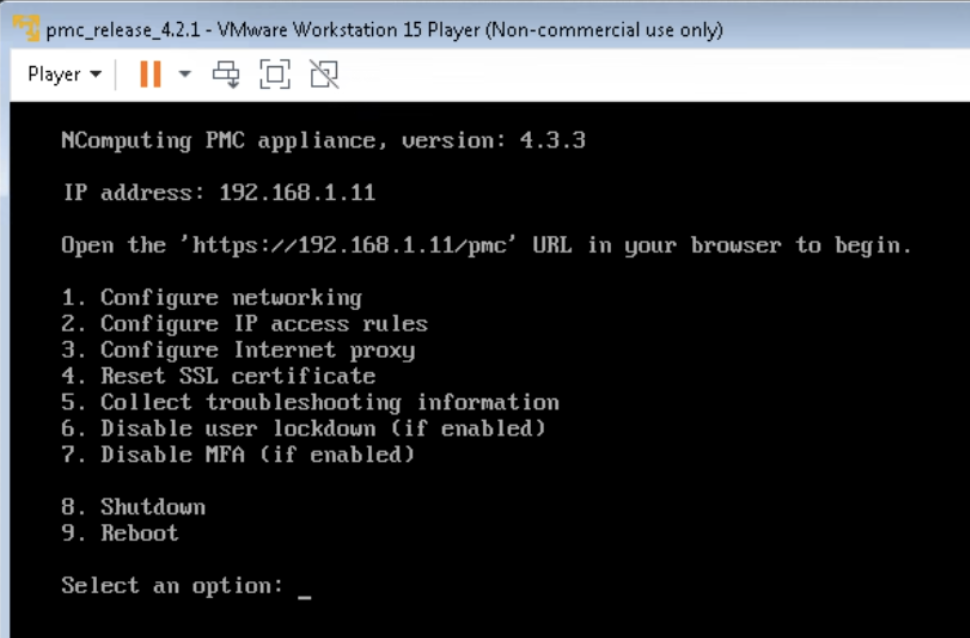
- From the main menu options, select Option 5: Collect Troubleshooting Info.
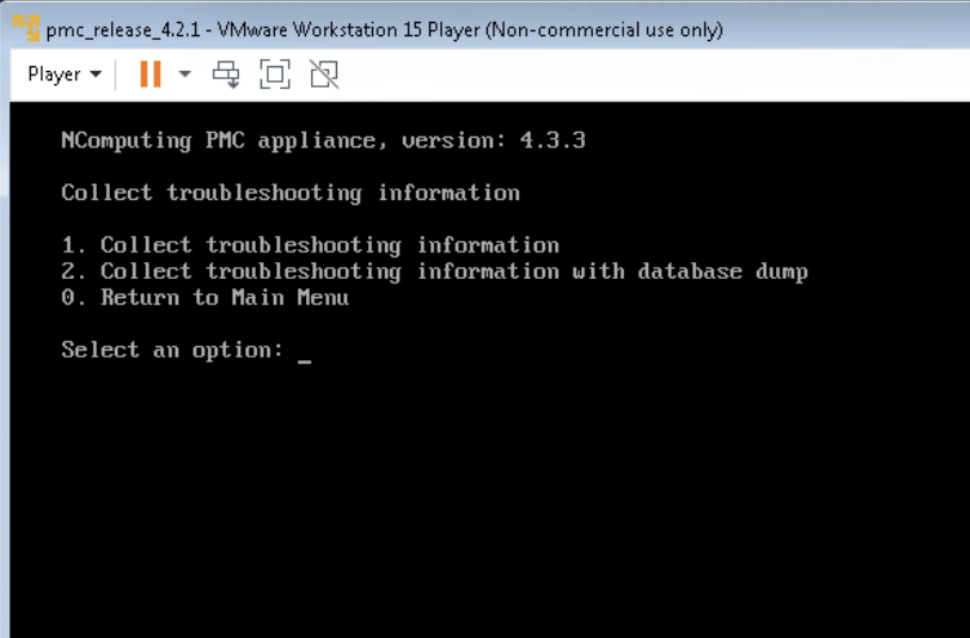
- Select Option 1 to initiate the collection process.
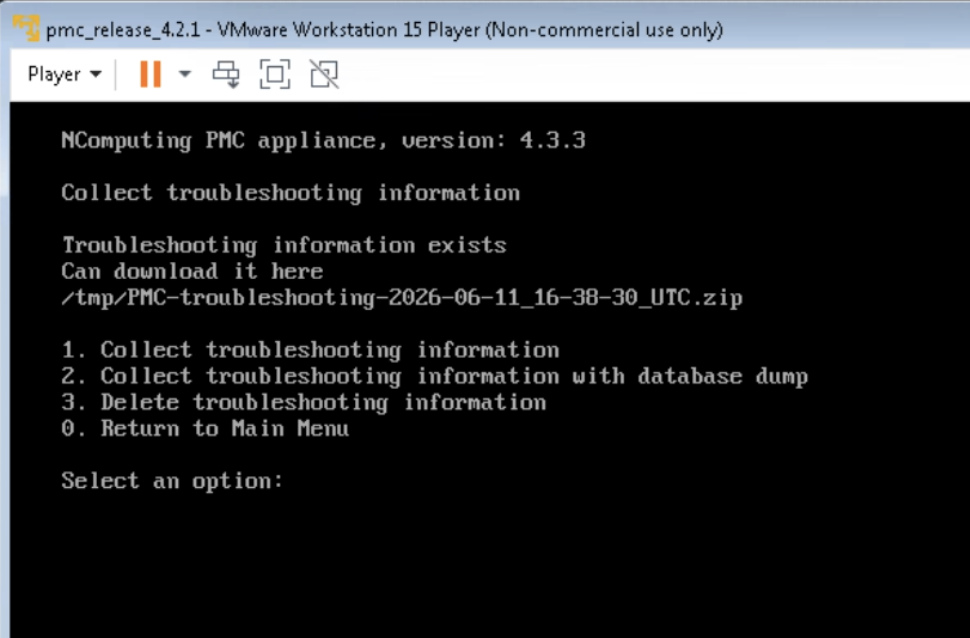
- The console will display the progress of the commands. Once finished, the log file path will be displayed on the screen.
Step B: Extract Logs via SFTP/SCP
Since the TUI does not provide a direct download link, you must move the file to your local machine:
- Connect: Use an SFTP/FTP client (such as Termius or FileZilla) or a command-line tool like
SCP. - Locate: Navigate to the directory path provided by the console in Step A.
- Transfer: Download the compressed log file to your local machine and provide it to the NComputing Support Team.
Visual Guide
Step A: Access the Virtual Appliance and Select Option 5: Collect Troubleshooting Information
Select Option 1: Collect Troubleshooting Information
The console will display the progress of the commands. Once finished, the log file path will be displayed on the screen.
Step B: Connect via SFTP/FTP, locate the file and transfer it to your local machine for later sharing to the NComputing Support Team
Note: This document assumes that you have already changed the credentials for PMC. However, according to your organization’s security guidelines, if you have not, the default credentials are:
- Default User:
root - Default Password:
pmcadmin
Should you have any questions on this process, please contact our Support Team.
Article #KB869
Last Edited: 06/03/2026
Related Articles
[Release Notes] PMC Endpoint Manager
NComputing PMC Endpoint Manager Version 4.2.1 Release Notes PRODUCT RELEASE NOTES: NCOMPUTING PMC ENDPOINT MANAGER, VERSIONS 4.2.1 Product: NComputing PMC Endpoint Manager Version: 4.2.1 Supported virtualization environments: VMware ESXi 6.7.0, ...PMC Version 4, Start Guide
Overview This document based on the release notes of PMC 4.1.1. It covers everything you need to know, in-depth, regarding installation and deployment of PMC. It is always recommended that you use the current release notes of every PMC version that ...Updating PMC Virtual Appliance – Process and Best Practices
Overview This article provides a step-by-step guide for updating the PMC Virtual Appliance. Whether your PMC is hosted on-premises or in a cloud environment like Azure, following these instructions will ensure a smooth and secure update process. PMC ...How to Create and Deploy the PMC Virtual Appliance
Overview NComputing PMC is an endpoint management system designed and developed to remotely manage NComputing access devices including LEAF OS devices (PCs/Laptops), RX420(RDP), RX-RDP+, RX-RDP and RX-300 thin clients. It is offered as a ...How to Collect Device Troubleshooting Logs from PMC
Overview This document will show the process collecting logs from any device that is currently connected to PMC. This can be very useful when you are monitoring a thin client deployment remotely and you have no immediate access to the thin client ...