Collecting Support and Troubleshooting Logs from PMC Appliance
Overview
The NComputing Support Team may ask you to share support files from PMC. These logs are essential for diagnosing matters like synchronization issues, licensing errors, or unexpected shutdowns.
To collect support files for the PMC (Endpoint Manager) appliance, you can use either the web interface or SSH, depending on the state of your system.
1. Via the PMC Web Interface (Recommended)
This is the standard method for generating a comprehensive support package:
- Login: Access your PMC dashboard (e.g.,
https://<PMC_IP_Address>/pmc) using admin credentials. - Navigate: Click on the Administration tab in the top navigation bar and when the menu expands click Troubleshooting.
- Generate: Click the Collect Troubleshooting Information button.
- Collect: The system will compile a compressed archive and notify you of the location. You can click on the files list hyperlinked text, or navigate to the Files tab of the left-hand side menu.
- Download: Locate the generated
.tar.gzor.zipfile in the list and click the download icon to save it to your local machine.
Visual Guide
Step 1: Navigate to Administration > Troubleshooting

Step 2: Click Collect Troubleshooting Information

Step 3: Access the Files list

Step 4: Download the support package

Visual Guide
Step 1: Navigate to Administration > Troubleshooting
Step 2: Click Collect Troubleshooting Information
Step 3: Access the Files list
Step 4: Download the support package

Note: This document assumes that you have already changed the credentials for PMC. However, according to your organization’s security guidelines, if you have not, the default credentials are:
- Default User:
pmcadmin - Default Password:
pmcadmin
2. Via the PMC Virtual Appliance Text User Interface (TUI)
If the web interface is unavailable, you can generate the troubleshooting package from the Virtual Appliance console and copy it to your computer over SSH.
Step A: Generate Logs via Console
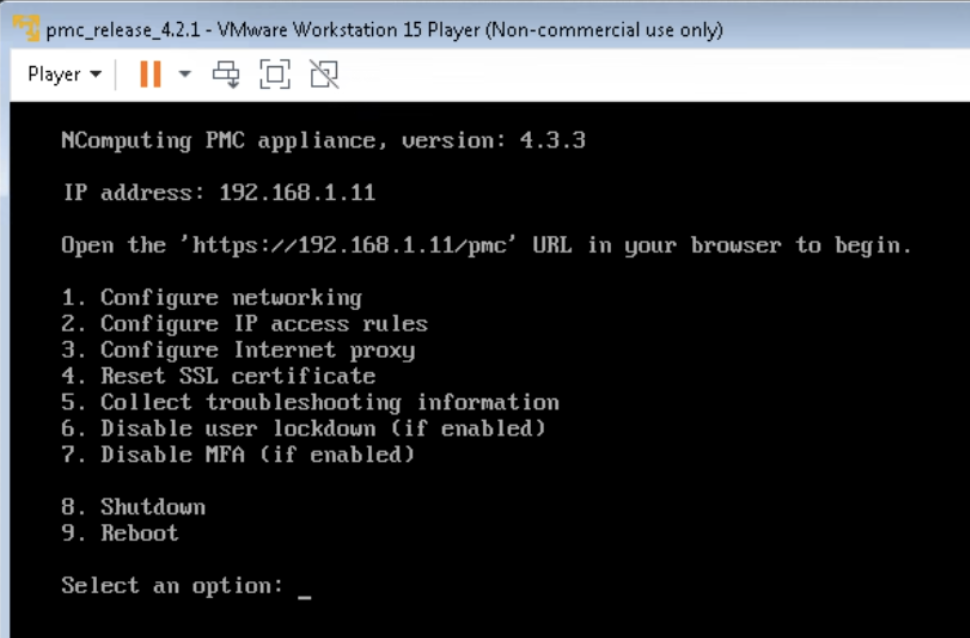
- Access the PMC Virtual Appliance console through your hypervisor or a direct terminal.
- From the main menu, select 5. Collect troubleshooting information.
- Depending on your needs, select: 1. Collect troubleshooting information or 2. Collect troubleshooting information with database dump.
- When the collection finishes, the console displays the full path of the ZIP file in the /tmp directory. Note this path for Step B.
If a troubleshooting package already exists, the console displays its path. You can then collect a new package or delete the existing one.
Step B: Extract Logs via SFTP/SCP
The TUI does not provide a download link, so copy the file to your computer over SSH using either method below. Keep the package on the appliance until you have confirmed the transfer.
Option 1 — SFTP client: Connect to the PMC IP address as root with an SFTP client such as Termius or FileZilla (SFTP mode). Then open the path shown in Step A and download the file.
Option 2 — SCP command: On Windows 11, open Command Prompt or PowerShell and run:
scp root@<PMC IP address>:<file path> <local destination folder>
For example, to copy the file to an existing folder named C:\TSFiles:
scp root@192.168.1.11:/tmp/PMC-troubleshooting-2026-10-06_14-35-10_UTC.zip C:\TSFiles
Enter the root password when prompted.
Once the file is on your computer, provide it to the NComputing Support Team.
If the transfer fails, verify that:
- your computer can reach the PMC IP address;
- SSH is not blocked by a firewall;
- the root credentials are correct;
- the file name and path are correct.
Visual Guide
Step A: Access the Virtual Appliance and Select Option 5: Collect Troubleshooting Information
Select Option 1: Collect troubleshooting information, or Option 2: Collect troubleshooting information with database dump
When the collection finishes, the console displays the path of the troubleshooting file
Step B
Option 1: Connect with an SFTP client, open the /tmp folder, and transfer the file to your computer
Option 2: Copy the file with the SCP command (Example)
Note: This document assumes that you have already changed the credentials for PMC. However, according to your organization’s security guidelines, if you have not, the default credentials are:
- Default User:
root - Default Password:
pmcadmin
Should you have any questions on this process, please contact our Support Team.
Article #KB869
Last Edited: 06/03/2026